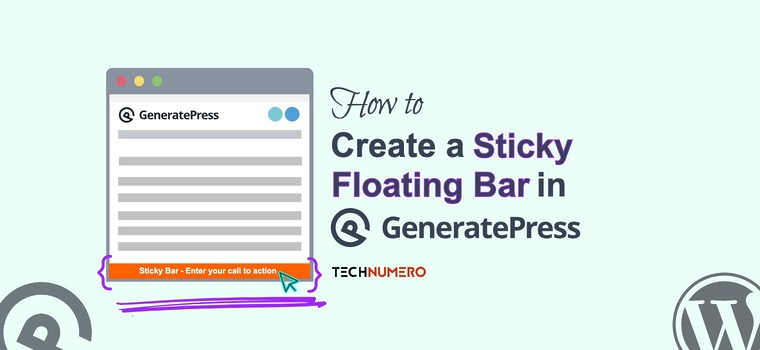
Want to create a sticky floating footer bar in GeneratePress? If you are looking for a step-by-step guide, keep reading this article.
Everyone knows that the GeneratePress theme is highly customizable with CSS codes, hooks, and page builders. When running a website and you need to grab your visitors’ attention, header or footer bars are great methods.

Since you have GP installed, without using any extra plugins, you can set up a GeneratePress floating footer bar, which is also sticky. You can display social icons, discount coupons, short notices, lead generation CTA buttons, or whatever you need.
And that’s why, in this article, we are going to show you how to create a sticky floating footer bar in GeneratePress.
But before moving into the tutorial, let’s see why you need to make a bottom bar with the GeneratePress Elements function.
Adding a sticky floating footer bar in the GeneratePress Theme is one of the simplest ways to improve user experience and encourage conversion optimization.
A floating footer keeps essential elements like a call us button, WhatsApp button, or social sharing buttons visible at all times, even when visitors scroll.
This makes it easier for website visitors on both desktop and mobile devices to take action without distraction. With GP Premium and the Elements Module, you can easily design floating footer bars using custom CSS.
Now that you know why you should create a sticky floating footer bar in the GeneratePress theme, let’s see how to achieve that.
We will use the GeneratePress premium WordPress theme for the tutorial. Once you have accessed the premium theme settings, you can go to the Elements section and activate it.

Now you need to create a Hook Module.

The code you will be copying is:
<div class="technumero-footer-bar-fixed hide-on-mobile hide-on-tablet">
    <div class="notice-inner grid-container">
        <span>If you have any questions, reach us!</span><a href="#"><button class="technumero-reading-button">Open Ticket</button></a>
    </div>
</div>
However, before pasting the code, modify the text as needed.

The hook we will be using will be generate_after_footer.

Next, we need to choose the display location. Choose the entire site for that.

Once you are done, publish the code. The next step is to style it with a bit of CSS. The code you will be pasting is:
.technumero-footer-bar-fixed {
    position: fixed;
    bottom: 0;
    text-align: center;
    padding: 10px 0;
    z-index: 9999;
    background-color: #ff6200; /* Change the Color according to your choice */
    color: #ffffff;
    width: 100%;
}

.technumero-footer-bar-fixed span {
    padding-right: 10px;
    font-size: 16px;
}

.technumero-reading-button {
    border-radius: 50px;
    padding: 5px 10px;
}

body {
    margin-bottom: 50px;    /*  Change to Match with body*/
}
You can tweak the color and other things based on your requirements. And paste the code to the Additional CSS section.

Publish the changes and check your website from the front end. You will see a sticky footer bar there.

That’s it!
This is how you can create a sticky floating footer bar in the GeneratePress theme.
Frequently Asked Questions
Next, let’s see some frequently asked questions regarding the topic.
You can create a sticky floating footer bar in the GeneratePress theme by using the elements module in GP premium along with some CSS code snippets. Add a hook element targeting the footer and style it with custom CSS under Advanced > Additional CSS class to ensure it stays visible while scrolling.
Yes. You can include a call us button, text us button, or WhatsApp button inside your GeneratePress floating footer. Using a GenerateBlocks container block (GB container block) or custom HTML block, you can insert buttons, apply border radius, and style them with background color for better visibility.
To ensure your floating footer bars display properly on mobile devices, use media queries in your custom CSS. You can adjust the footer sticky layout, padding, and alignment to fit the smaller screen while maintaining a clean responsive design.
Absolutely. Many users add social media icons, social sharing buttons, or even floating social sharing buttons to improve engagement. You can use SVG icons, lightweight social icons, or integrate a floating table of contents with anchor links to maximize visibility and encourage sharing.
While it’s possible with custom CSS, using the GeneratePress premium modules makes the process faster and more flexible.
Can I add design effects like shadows or transparency?
Yes. With CSS style and CSS code snippets, you can add box shadows, backdrop filters, and border radius to enhance your floating footer bar. These effects improve aesthetics while keeping your GeneratePress site lightweight and modern.
Conclusion
Adding a sticky floating footer bar in the GeneratePress theme is an excellent way to improve user experience and boost conversion optimization. As you can see in this article, adding a footer bar in a GeneratePress-powered website is simple and doesn’t need any third-party plugins.
We highly recommend using this function to display important links or social media sharing buttons as needed.
Would you create a sticky floating footer bar in GeneratePress theme?
Let us know in the comments.