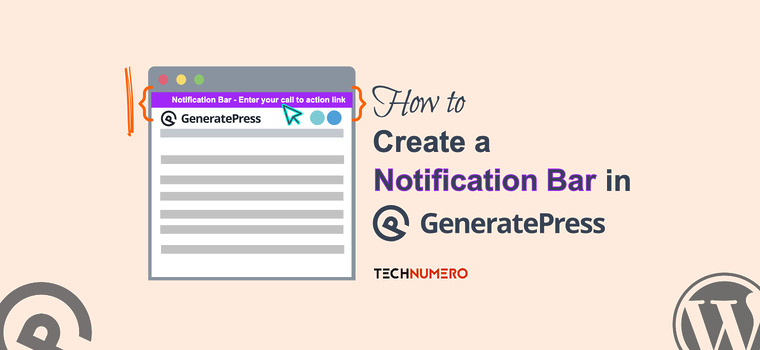
Do you want to create a GeneratePress notification bar without a plugin? If you are looking for a step-by-step guide, keep reading this post.
Adding a notification bar in the GeneratePress theme is a great way to share important updates, promotions, or links with your visitors.

Instead of relying on a separate plugin, you can use GP Premium and the Elements module to create a lightweight, fully customizable bar that won’t hurt your site performance.
In this guide, we’ll show you how to create a GeneratePress notification bar without a plugin.
Why You Need to Create a GeneratePress Notification Bar
A notification bar is a simple yet powerful way to grab visitor attention in the GeneratePress Theme.
Whether you want to highlight discounts, updates, or a quick call to action, a top notification bar keeps your message always visible without disrupting the design.
Unlike heavy plugins such as WP Notification Bar Pro/lite or WPFront Notification Bar, adding it directly with GP Premium and the Elements module keeps your GeneratePress WordPress theme lightweight and improves site performance.
You can even enhance it with custom CSS or pure JavaScript for features like a dismissable notification bar, responsive display, or smooth CSS transition effects.
This approach blends flexibility with speed, helping you engage users while maintaining fast loading speed across devices.
Now that you know why you need to create a GeneratePress notification bar for your website, let’s move on to the tutorial where you will learn how to create a GeneratePress notification bar without a plugin.
How to Create a GeneratePress Notification Bar without a Plugin
To finish this, you need to be using the premium version of the GeneratePress theme. The very first thing you need to do is disable the sticky navigation option if you are using it.
This can be done from the WordPress customizer.

Now we are ready to add the message content to be displayed in the notification bar. We do this using the Elements module. First, enable the Elements module.

Now, add a Hook type element.

The code you need to paste is:
<div id="technumero-top-bar-notification">
	<div class="notice-inner grid-container">ADD YOUR NOTIFICATION HERE!  <a href="ADD YOUR URL HERE" target="_blank">ADD YOUR LINK Text HERE</a><button id="technumero-closebar" type="button">X</button>
	</div>
</div>

Next, move to the hook settings and select ‘generate_before_header‘.

The next thing we need to configure is the display conditions. So, move to the Display Rules tab and select Entire Site as the location.

If you check the front end, you can see the notification bar.

However, the close button is not currently functional because we haven’t added JavaScript for it, and it is also missing some styling. In the next section, we will address that issue.
Let’s fix the close button issue first. You need to add another Hook element to the website, and this is the code you need to use:
<script>
    document.getElementById("technumero-closebar").onclick = function() {
        var z = document.getElementById("technumero-top-bar-notification");
        if (z.style.display == 'none') {
            z.style.display = 'block';
        } else {
            z.style.display = 'none';
        }
    }
</script>
Choose the wp-footer hook and set the location to the entire site.

The only thing left to do is add some CSS to style the notification bar. To do that, go to the Additional CSS section in the WordPress customizer.
Now, paste this code:
#technumero-top-bar-notification {
	text-align: center;
	position: -webkit-sticky;
	position: sticky;
	top: 0px;
	z-index: 9999;
	border-bottom: 3px dashed #eaf1f8;
	background-image: linear-gradient(to left, #E100FF, #7F00FF)!important;
	color: #fff;
	font-size: 15px;
	padding: 7px 0px;
	}

.admin-bar #technumero-top-bar-notification {
	top: 32px;
	}

#technumero-top-bar-notification a {
	border-bottom: 2px dotted;
	color: #fff;
	}

#technumero-closebar {
	float: right;
	padding: 5px 9px;
	border-radius: 15px;
	background-color: #eee;
	color: #34495e;
	line-height: 1em;
}

Publish the changes and check your website from the front end. You will see the live result.

Based on your requirements, you can tweak the notification bar content, link, and styling.
That’s it!
This is how you can create a GeneratePress notification bar without a plugin.
Frequently Asked Questions
Next, let’s see some frequently asked questions and answers regarding this topic.
Can I create a notification bar in the GeneratePress theme without a plugin?
Yes. With GP Premium and the Elements module, you can add a custom HTML block or Block Element to display a top notification bar without installing a separate plugin. This method is lightweight and helps maintain fast loading speed.
Is adding a notification bar using CSS code and HTML safe?
Absolutely. Using CSS code with a custom HTML widget or the block editor is safe as long as you avoid malformed data or unnecessary jQuery code. GeneratePress provides GeneratePress Hooks and the wp_footer hook to implement the design securely.
Can I make the notification bar dismissable?
Yes. You can add a pure JavaScript or JavaScript code snippet to make the bar a dismissable notification bar. This improves user experience by allowing visitors to close the bar after viewing it.
Does a notification bar affect site performance?
When created using the GeneratePress premium theme, CSS3, and minimal HTML code, the notification bar is optimized for site performance. Avoid bloated solutions like WP Notification Bar Pro or WPFront Notification Bar, Hello Bar, if you want a faster site.
Yes. You can include a Paragraph block, Button block, or even a menu inside the bar. Some users also add social media icons or promotional content like “Powered by GeneratePress. to promote the GP affiliate link.
Is the notification bar responsive on mobile view?
Yes. With proper responsive design and CSS transition effects, your top bar widget or sticky footer bar will adjust seamlessly across mobile and desktop.
Can I schedule or expire the notification bar automatically?
By adding cookie-based display logic or an expiration date via JavaScript, you can control when the notification bar appears. This is useful for limited-time promotions or seasonal campaigns.
Do I need coding knowledge to create a notification bar in GeneratePress?
Not much. A basic understanding of CSS code, HTML code, and how to use the Elements module is enough. You don’t need to be a developer or use support/custom development services to implement this.
Conclusion
Creating a notification bar in the GeneratePress Pro theme is simple with GP Elements and a few lines of code.
Instead of relying on a separate plugin such as WP Notification Bar Pro, you can use the Element Module, additional CSS, and Create Hook to build better websites while maintaining strong web performance.
This lightweight approach helps you eliminate the need for a separate plugin, style the notification bar independently of the body class, and create a floating notification bar, among other benefits.
So, would you create a GeneratePress notification bar without a plugin for your website?
Let us know in the comments.